How to Identify a Font from an Image (Manual vs AI)
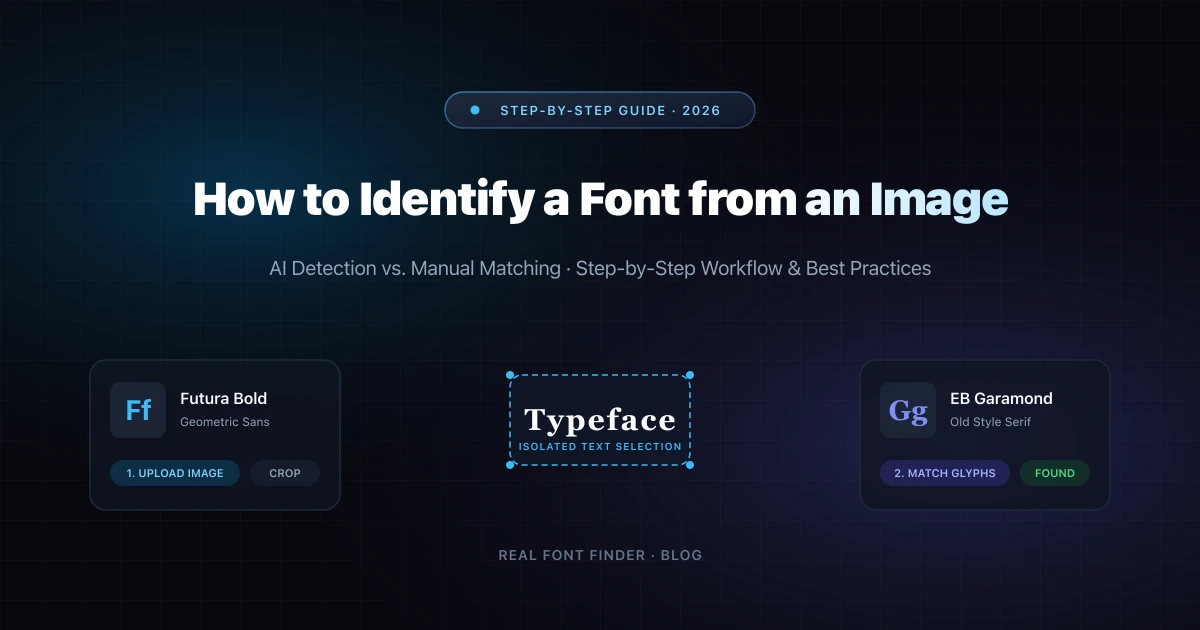
You see a font on a poster, a logo or a screenshot and you need its name. This is one of the most common design problems, and there are two realistic ways to solve it: do it by hand, or let an AI font identifier do it. This guide covers both so you can pick the faster route for your situation.
Method 1: Identify a font manually
The manual method relies on your eye and a bit of typography knowledge. It takes longer, but it teaches you what to look for and works even when tools fail.
Step 1: Get a clean crop
Crop tightly around the text and zoom in. Remove busy backgrounds if you can. The cleaner the letters, the easier every next step becomes.
Step 2: Classify the font
Decide the broad category first. This narrows thousands of fonts down to a few hundred.
- Serif: small strokes at the ends of letters (like Times New Roman).
- Sans-serif: clean letters without those strokes (like Helvetica).
- Script: flowing, handwriting-style letters.
- Display: decorative fonts made for headlines and logos.
- Monospace: every letter takes equal width, common in code.
Step 3: Study the telling letters
Some letters reveal more than others. Look closely at a, g, R, Q, y, t and the numbers 1 and 7. Is the lowercase a single-story or double-story? Does the g have an open or closed tail? Does the R have a straight or curved leg? Write these traits down.
Step 4: Search with those traits
Use the traits to filter font libraries such as Google Fonts, or compare visually against fonts you suspect. If you are stuck, post your crop in a font identification community like r/identifyfonts or the Typography Stack Exchange. People there often answer in minutes.
Method 2: Identify a font with AI
An AI font finder automates the same process you just read. It looks at stroke weight, proportions, serifs, terminals and spacing, then compares them against a large font library and returns the closest matches with a confidence score. If you want to compare the top options, check our guide to the best AI font identifiers.
How to do it with Real Font Finder
- Open the font finder on the homepage.
- Upload your image or paste it with Ctrl+V (Cmd+V on Mac).
- Wait a few seconds while the AI reads the letterforms.
- Check the font name, confidence score and license status.
- If the font is paid, use the free alternative and copy the ready-made CSS.
The same tool also works for live websites. Switch to the Website URL tab and it reads the CSS to return the exact fonts a page declares, which is more reliable than guessing from a screenshot.
Manual vs AI: which should you use?
| Manual method | AI font identifier | |
|---|---|---|
| Time needed | 10 to 60 minutes | A few seconds |
| Skill needed | Basic typography knowledge | None |
| Clean, sharp images | Good | Very good |
| Messy or low-quality images | Hard | Good if you crop well |
| Cost | Free (your time) | Free with Real Font Finder |
| Free alternatives | You search for them | Suggested automatically |
| Best for | Confirming a guess, rare or custom fonts | Fast answers, everyday projects |
In practice, the best workflow is to start with AI for a quick answer, then use the manual checks from Method 1 to confirm it when the result matters, such as client or brand work.
Tips for a more accurate result
- Crop tightly around the text and remove the background where possible.
- Use a sharp, high-contrast image. Blurry or tiny text lowers accuracy.
- Keep the text horizontal. Straighten photos taken at an angle.
- Include 4 to 6 clear lowercase letters such as a, e and g.
- If confidence is low, try a second crop or check the alternatives shown.
When no tool gives an exact match
Logos and posters often use custom or heavily modified lettering, so an exact match may not exist. In that case, take the closest match and use a free alternative with a similar look. You will get 90% of the visual feel without a license cost, and you can adjust spacing or weight to get closer.
Try it on your own image
Upload an image and get the font name, a free alternative and CSS in seconds.
Identify a font now →Frequently Asked Questions
How do I identify a font from an image for free?
Upload the image to a free AI font finder such as Real Font Finder. It returns the font name, a confidence score and free alternatives with no account needed.
Can I find a font from a photo taken on my phone?
Yes. Make sure the text is horizontal, well lit and in focus, then crop to the text before uploading.
Why does the tool show a similar font and not the exact one?
The exact font may be custom, modified or missing from the library. The closest match plus a free alternative usually gets you what you need.
How do I find the font used on a website?
Use the Website URL tab. It reads the page CSS and returns the actual fonts the site declares.
Is manual identification still worth learning?
Yes. It helps you confirm AI results and handle unusual fonts where automatic detection struggles.